To remove the limit on the number of concurrent RDP user connections in Windows without using rdpwrapper, you can replace the original termsrv.dll file. This is the main library file used by the Remote Desktop Service. The file is located in the C:\Windows\System32 directory.
It is advisable to make a backup copy of the termsrv.dll file before editing or replacing it. This will help you to revert to the original version of the file if necessary. Open an elevated command prompt and run the command:
copy c:\Windows\System32\termsrv.dll termsrv.dll_backup
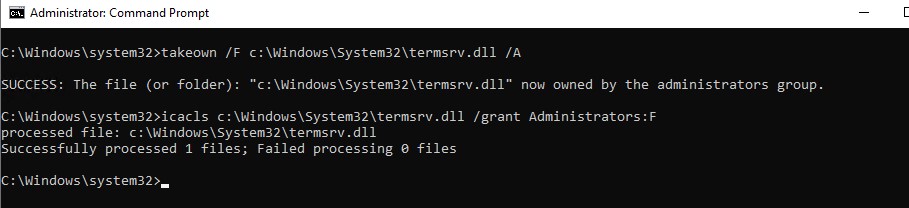
Then you need to take ownership of the termsrv.dll file. To change a file’s owner from TrustedInstaller to the local Administrators group, use the command:
takeown /F c:\Windows\System32\termsrv.dll /A
SUCCESS: The file (or folder): c:\Windows\System32\termsrv.dll now owned by the administrators group
Now use the icacls.exe tool to grant Full Control permissions to the termsrv.dll file for the local Administrators group:
icacls c:\Windows\System32\termsrv.dll /grant Administrators:F
processed file: c:\Windows\System32\termsrv.dll Successfully processed 1 files; Failed processing 0 files.
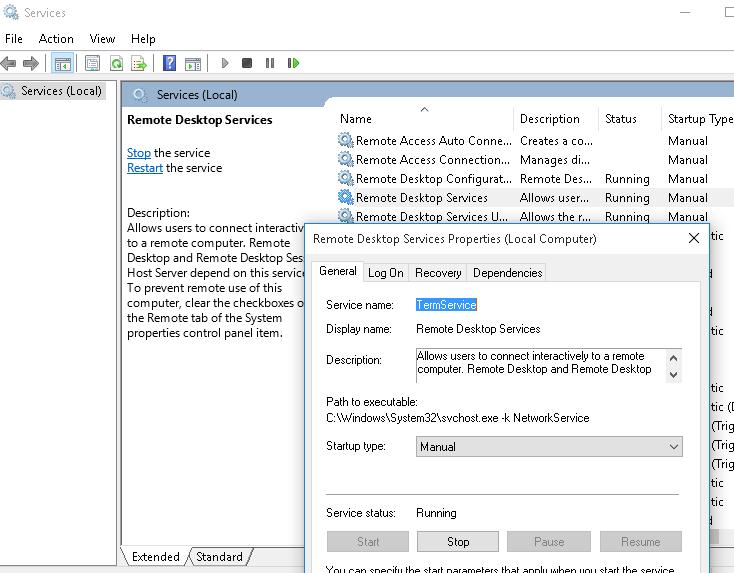
Now you need to stop the Remote Desktop service (TermService) using the services.msc console or with the command:
net stop TermService
It also stops the Remote Desktop Services UserMode Port Redirector service.
Run the winver command or the following PowerShell command to find your Windows build number:
Get-ComputerInfo | select WindowsProductName, WindowsVersion
In my case, Windows 10 build 22H2 is installed.
Then open the termsrv.dll file using any HEX editor (for example, Tiny Hexer). Depending on the build of Windows you are using, you will need to find and replace the string according to the table below:
| Windows build | Find the string | Replace with |
| Windows 11 22H2 | 39 81 3C 06 00 00 0F 84 75 7A 01 00 | B8 00 01 00 00 89 81 38 06 00 00 90 |
| Windows 10 22H2 | 39 81 3C 06 00 00 0F 84 85 45 01 00 | |
| Windows 11 21H2 (RTM) | 39 81 3C 06 00 00 0F 84 4F 68 01 00 | |
| Windows 10 x64 21H2 | 39 81 3C 06 00 00 0F 84 DB 61 01 00 | |
| Windows 10 x64 21H1 | 39 81 3C 06 00 00 0F 84 2B 5F 01 00 | |
| Windows 10 x64 20H2 | 39 81 3C 06 00 00 0F 84 21 68 01 00 | |
| Windows 10 x64 2004 | 39 81 3C 06 00 00 0F 84 D9 51 01 00 | |
| Windows 10 x64 1909 | 39 81 3C 06 00 00 0F 84 5D 61 01 00 | |
| Windows 10 x64 1903 | 39 81 3C 06 00 00 0F 84 5D 61 01 00 | |
| Windows 10 x64 1809 | 39 81 3C 06 00 00 0F 84 3B 2B 01 00 | |
| Windows 10 x64 1803 | 8B 99 3C 06 00 00 8B B9 38 06 00 00 | |
| Windows 10 x64 1709 | 39 81 3C 06 00 00 0F 84 B1 7D 02 00 |
Tiny Hexer cannot edit termsvr.dll file directly from the system32 folder. Copy it to your desktop and replace the original file after modifying it.
For example, my build of Windows 10 x64 is 22H2 19045.2006 (termsrv.dll file version is 10.0.19041.1949). Open the termsrv.dll file in Tiny Hexer, then find the text:
39 81 3C 06 00 00 0F 84 75 7A 01 00
and replace it with:
B8 00 01 00 00 89 81 38 06 00 00 90
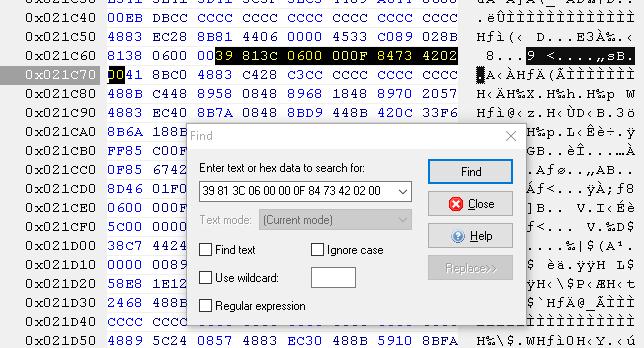
Save the file and start the TermService.
If something goes wrong and you experience some problems with the Remote Desktop service, stop the service and replace the modified termsrv.dll file with the original version:
copy termsrv.dll_backup c:\Windows\System32\termsrv.dll
To avoid manually editing the termsrv.dll file with a HEX editor, you can use the following PowerShell script to automatically patch the termsrv.dll file. The PowerShell script code is available in my GitHub repository at the following link:
This script was written for the Windows PowerShell version and does not work in modern PowerShell Core.
👍 The advantage of the method of enabling multiple RDP sessions in Windows 10 or 11 by replacing the termsrv.dll file is that antivirus software will not react to it (unlike RDPWrap, which is detected by many antivirus products as a malware/hack tool/trojan).
👎The disadvantage of this is that you will have to manually edit the file each time you update the Windows build (or if the monthly cumulative patches update the version of termsrv.dll).